Manage Users in the Dashboard
The Invictus Dashboard allows you to access the application with multiple user accounts. These can be local users, managed by Invictus itself; or Entra ID users, managed by your Azure tenant.
Use Entra ID users over local users for security reasons.
- Entra ID
- Local
👤 Requires membership of a synced Entra ID group.
The Invictus Dashboard can be configured to use existing users in Microsoft Entra ID groups. This removes the need to work with additional local Dashboard users.
Add an Entra ID user to the Dashboard
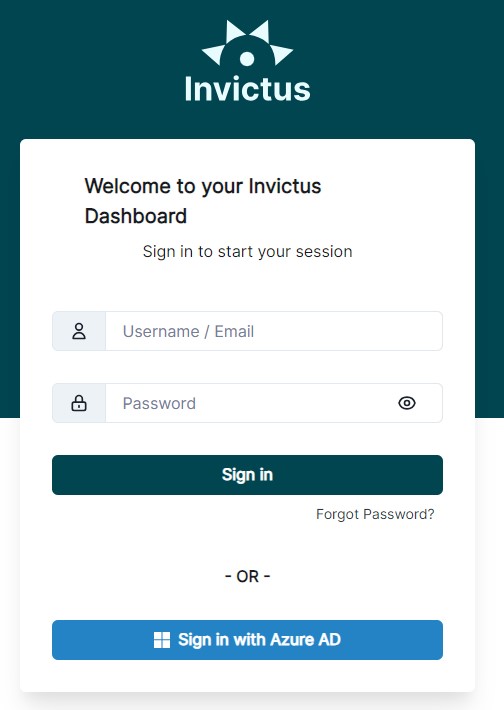
Microsoft Entra ID users can sign in automatically into the Invictus Dashboard if that user is part of an Entra ID group that is synced into the Dashboard.
Make sure that the group has a role assigned, otherwise the Dashboard will be unusable for the user.
Delete an Entra ID user from the Dashboard Only Admins
To delete a user click on the delete icon next to the user in the user list.
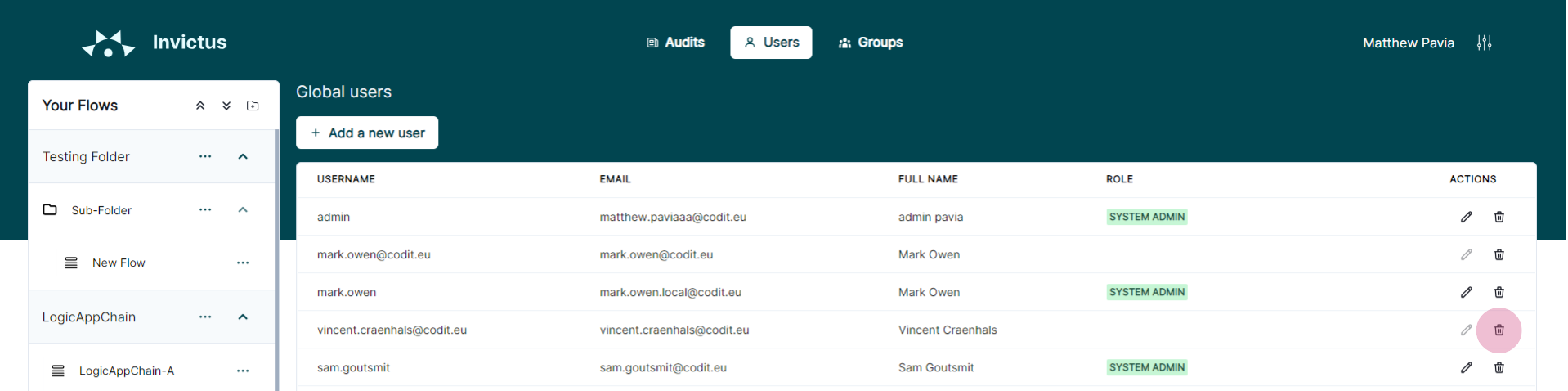
👀 Linked Entra ID users can be distinguished as they do not have a personal role assigned. The role is determined by the group the user is a member of.
Edit an Entra ID user's role in the Dashboard Only Admins
Entra ID users don't have personalized roles that allow them to access certain flows in the Dashboard. The user role is determined by the Entra ID group(s) where the user is a member of. If the group(s) has access to the flow, so will the user.
Configure forgot password procedure Only Admins
Before you can use the forgot password feature, you need to create an Microsoft Entra ID application registration and set it up with the Mail.Send API permissions. This is required because emails can only be sent through an OAuth 2.0 flow.
Please note that the permission granted allows any email address within the organization to be used as the sender.
Local users are entirely managed by the Invictus Dashboard. They can have their own personal permissions assigned and can be deleted at anytime.
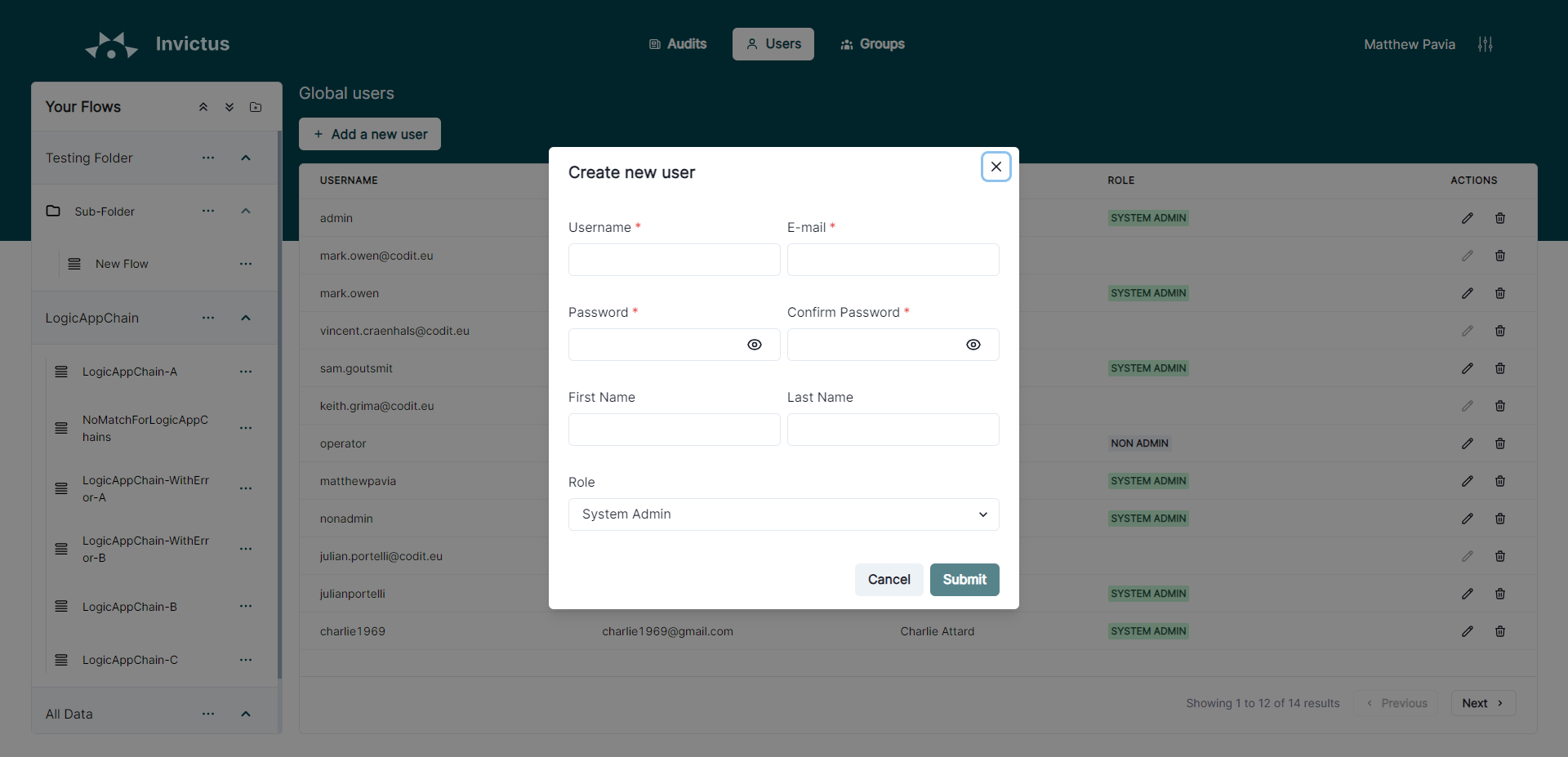
Add a local user to the Dashboard Only Admins
Local users can have a role assigned.
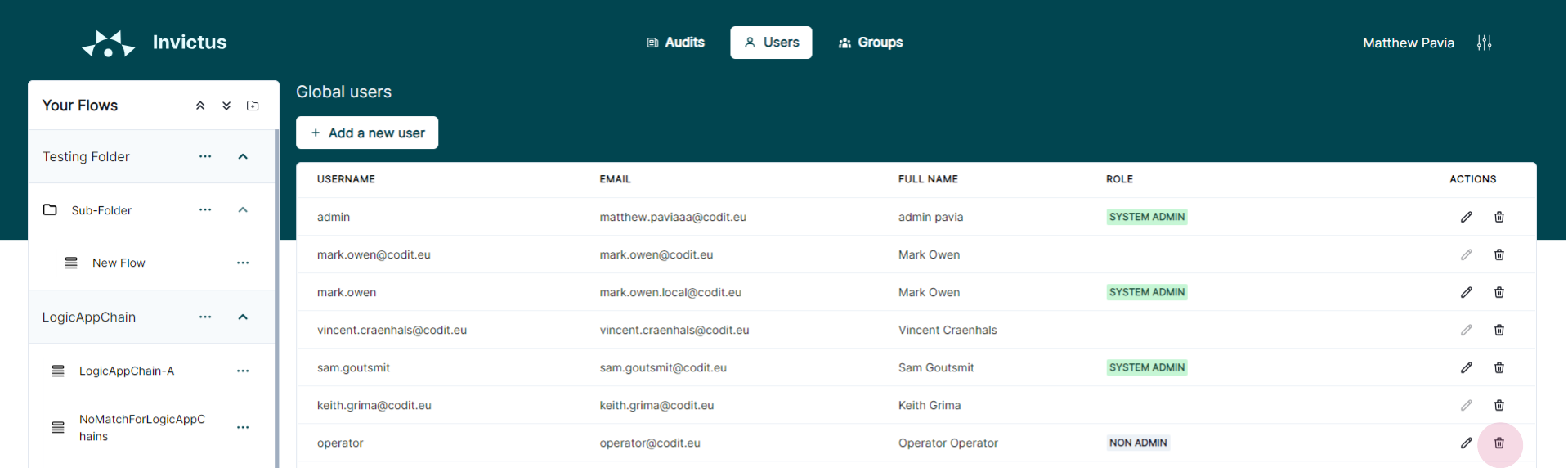
Delete a local user from the Dashboard Only Admins
Local users can be distinguished as they have a personal role assigned.
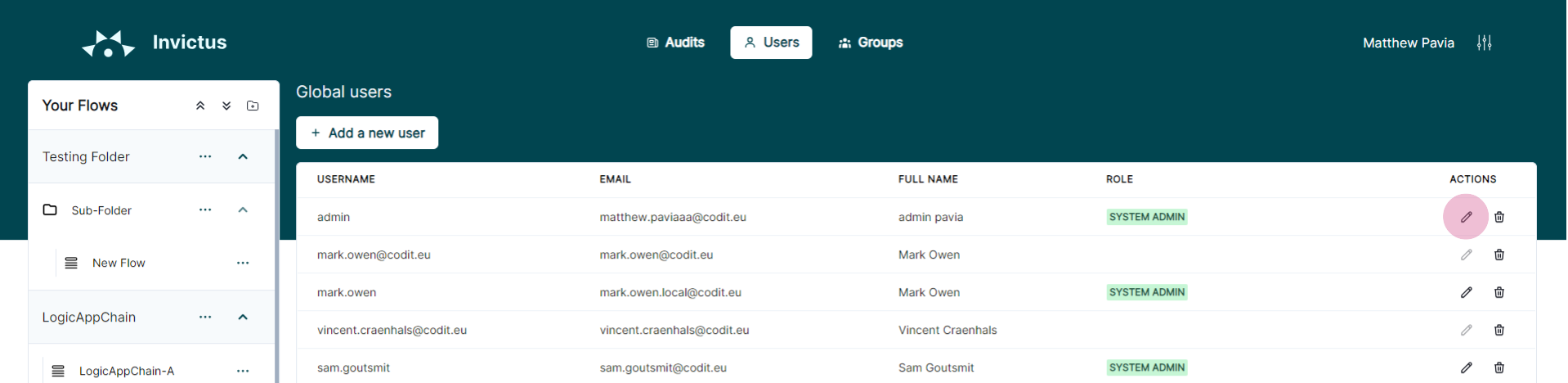
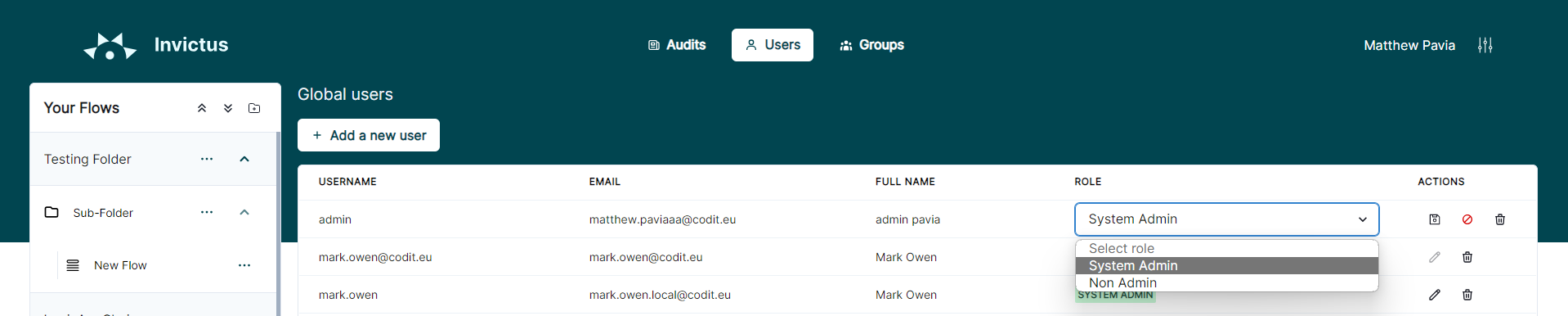
Edit a local user's role in the Dashboard Only Admins
Configure forgot password procedure Only Admins
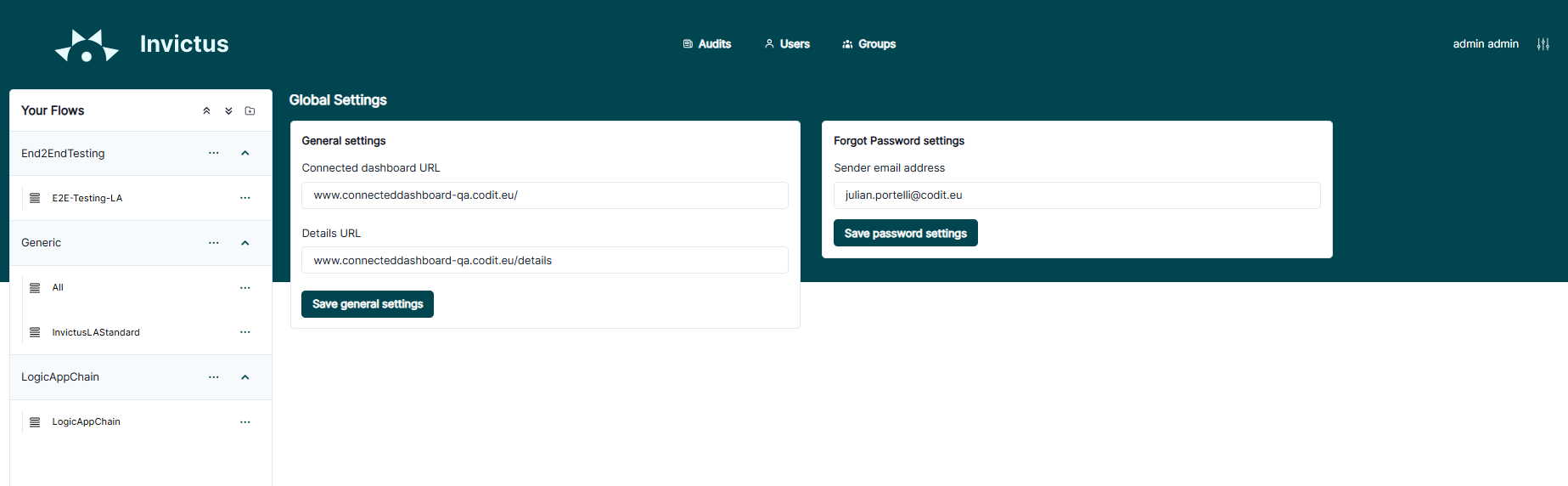
For local users to allow them to run the 'Forgot password' procedure, the following details have to be configured to use to correct email server.
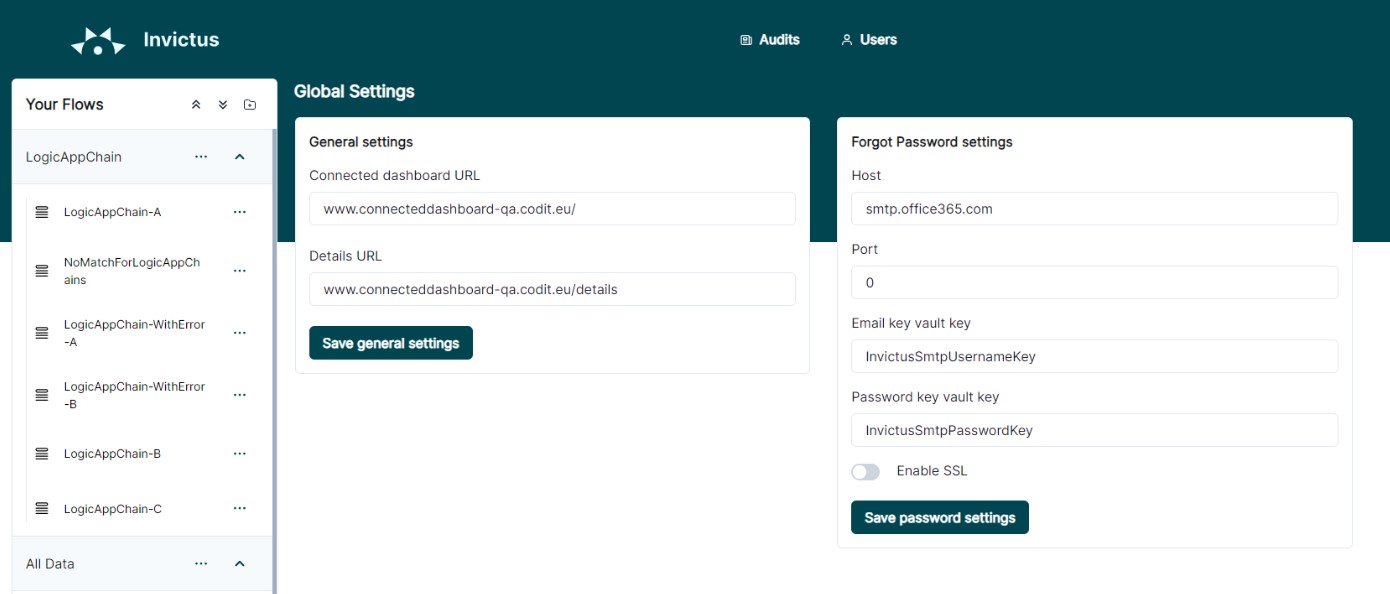
| Forgot password setting | Description |
|---|---|
Host | The host address of the email server from which the sender account originates. For instance, if it's a Gmail email account, the host should be "smtp.gmail.com". |
Port number | The port number for the email server from which the sender accounts originates, default is 587. |
Email key vault key | The Azure Key Vault secret name where the sender email address is stored (points to the Key Vault resource accompanied with the Invictus installation). |
Password key vault key | The Azure Key Vault secret name where the sender email password is stored (points to the Key Vault resource accompanied with the Invictus installation). |
SSL Enabled | It's recommended to enable SSL, as major email providers often require this setting. |